The issue of surfing the Internet in public places using Wi-Fi networks generally comfortable, but they involve risks and many problems, but also indispensable necessities and there knows no law, and the question here is the person you can do this with reducing the size of the risks arising from them? Yes, but by following the steps, Snordha detail below, using either a personal computer or mobile device tablet or smartphone, reportedly in "syenite" technical.
Choose wisely
Do not choose an open network or unknown and unfamiliar to you, for example, if you're in a cafe or a public place, check the name of the network that will connect their employees or workers.
If the connection via Windows sure to close the property "post or sharing files" with checking that the network used for public and not private, but to achieve this, you need to go to "Control Panel," then "Network and Sharing Center, and then change the settings of your participation evolving, then closes Share files when icon "in general."
In some cases, the user needs to run the firewall when you connect to a wireless network in general, in the absence of activated automatically, you have to go to the "Keyboard" then run the "firewall", this wall protects you from damage hackers and malicious software.
If you are using a device "Apple Mac", just open the "System Settings Mak- System Preferences" icon and then go to the "participation", and then disable file sharing, to prevent intruders and hackers from impenetrable.
Using "VPN"
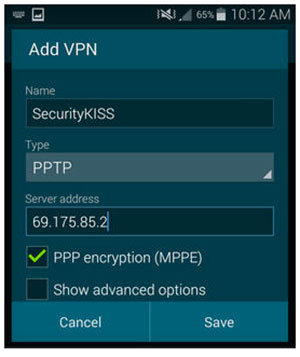
Create a "VPN" or virtual private network is one of the best ways to keep your computer and surf safe and encrypted, due to the provision of elemental protection and security when the movement and the passage of data between the device and the server "VPN", and this means that it is very difficult to infiltrate any intruder on your computer and penetrating your data and your accounts secret, because the default network encryption prevents control and traceability.
Browsing through the protocol "HTTPS"
This protocol allows the exchange of information securely encrypted, and this protocol is available for most browsers such as Chrome and Firefox and Firefox for Android, and Opera browser.
Activate dual authentication
Good to activate two-step authentication and applied to most of the services most commonly used for the user, such as Gmail, Twitter, Facebook, this method gives the user an additional degree of protection on his machine user, even in the event of anyone trying to intercept your data or spy on them.
Forget the network
After the completion of your session on the cafe and before departure, first make sure to get out of all the sites and services related thereto, and told the phone to forget the network of public wireless used, and this means that your phone or computer will not be able to connect to this network again, if you're in range of the network.
For users of Windows machines, uncheck "automatically connect", located next to the network on your computer, or go to Control Panel, then Network and Sharing Center, and then clicking on the name of the network, then "the characteristics of the wireless connection", then cancel the option written by the "Connect automatically when the network is in that range. "
The users of Macs, as we mentioned earlier, go to Settings Mac system, then the networks, and under the section "Wi-Fi" click on "Advanced", then cancel the option to "remember these networks when connected to the computer by automatically", and you can cancel networks by choosing the network name, then press the key that exists below.
For Android devices, just go to the list of Wi-Fi networks, and constantly put pressure on the network name, you will see the option to "forget the network", just click on it to activate it.
But users "IOS" go to "Settings" and then Wi-Fi networks, and then select the name of the network, and then "Lance this network", and to increase the safety and additional protection for your device, Libenge you run the option "question when access to the networks," and this option exists in List networks "Wi-Fi".